
1 On 1 Video Call Free Unlimited Time: A Practical Guide
Published 2026-09-22 · Updated 2026-10-25
If you are looking for a “1 on 1 video call free unlimited time” option, start by deciding whom you want to call: someone you already know, or someone you have yet to meet. A shared meeting room and a discovery service answer different needs. This guide explains a documented meeting-room option, the browser checks that help you get started, and how to read welcome offers. For GoLive’s 1v1 chat offer, the confirmed amount is 200 free coins for new registrations; this guide does not convert it into a duration.

Key Takeaways
- MiroTalk P2P’s official website advertises browser-based meeting rooms without a call-duration limit. This is a published description, not a duration test conducted for this guide.
- GoLive offers browser access without installation and an optional Android app. Its welcome offer is 200 free coins at new registration.
- A room you share with an existing contact is a different format from finding a new conversation partner. Choose the format before comparing offers.
- For camera problems, check the website’s permission and selected device first. A registration or welcome message does not diagnose a browser-permission problem.
Access and Source Verification
For a call with someone you already know, a room link can be a practical starting point. MiroTalk P2P’s official homepage [1] describes browser-based video calls, a room-name field and entry without a download or login. It advertises rooms without a call-time limitation. Read that as the operator’s description of its meeting format; it is not a promise about the quality of your connection or an account condition on a different website.
The project’s official GitHub repository [2] also describes an open-source, self-hosted WebRTC conferencing project. Self-hosting means deploying software on your own infrastructure. It is a different route from opening the hosted site, and it requires decisions about operation and configuration. You do not need to confuse the two when your immediate goal is simply to inspect a browser meeting room.
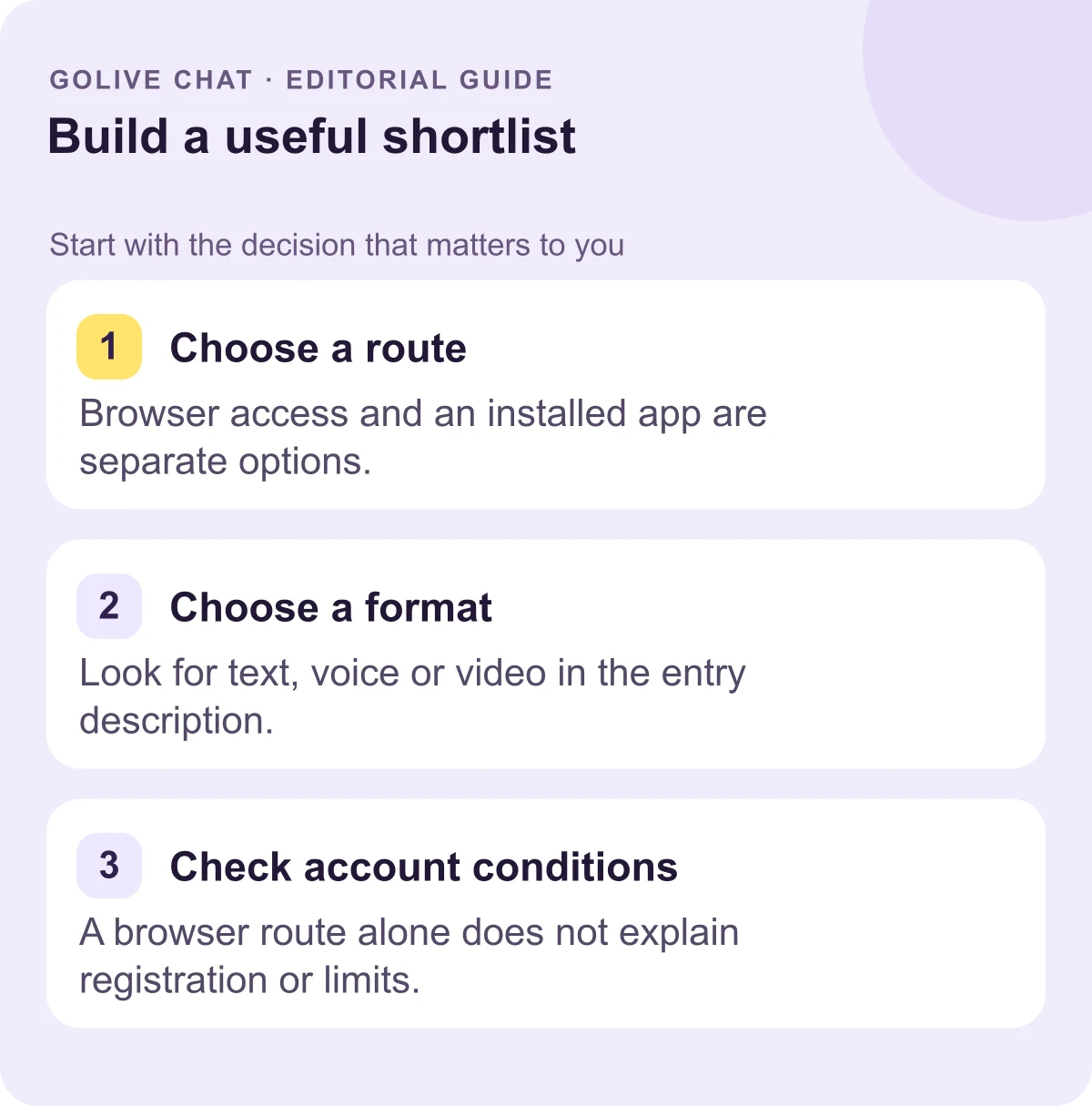
For GoLive Chat, the confirmed access routes are a browser without installation and an optional Android app identified by the official Google Play listing [6]. Here is a concise way to separate the route choices:
| Your starting requirement | Relevant source | First thing to inspect |
|---|---|---|
| A room to share with an existing contact | MiroTalk P2P homepage | The room-name entry and meeting description |
| Software to operate yourself | MiroTalk’s official repository | Deployment documentation and licence |
| GoLive in a browser | GoLive’s official website | Browser entry and registration information |
| GoLive as an installed Android app | Official Google Play listing | App identity and device information |
Keep the page address and its exact wording in one note if you intend to compare options later. A screenshot can help you remember what you read, while the address lets you return to the current information. Use the named operator’s own pages rather than transferring a condition from another service in the search results.
Browser Permissions and Connection Mechanics
A browser needs permission before a website can obtain camera or microphone input through the web’s getUserMedia() interface. MDN’s reference [3] explains that this interface requires a secure context, normally HTTPS. It also distinguishes permission denial from a missing matching device and from a device that cannot be read. These are browser-platform concepts; they are not a description of GoLive’s internal implementation.
For an ordinary user, the useful sequence is straightforward:
- Confirm the intended website. Check the address bar before responding to a device prompt. If you followed an unexpected link, return to the operator’s known address.
- Choose the conversation format. If you want a camera-based interaction, inspect the relevant entry instructions. If you prefer typing, look for an explicit text-only feature description before granting camera access.
- Review the permission. A previous denial can persist. Google’s Chrome camera and microphone guide [4] explains how to revisit site settings.
- Check the selected input. Confirm that the intended camera and microphone are available and selected where the browser offers that choice.
- Read the actual error. Distinguish a blocked permission from a missing device. If the browser says an administrator manages access, use the organisation’s support route.
A prompt may remain unanswered if you leave it open; MDN notes that the user is not required to make a choice. If you see a browser question waiting for a response, handle that question before interpreting the website as frozen. Conversely, when a device is unavailable, repeatedly changing account details will not supply the missing camera or microphone.
Before sharing a camera, check the background from your normal seated position. Move documents and personal screens out of view if you want to keep them private. Use a deliberate permission choice and a comfortable setup, rather than rushing because a promotional message is visible nearby.
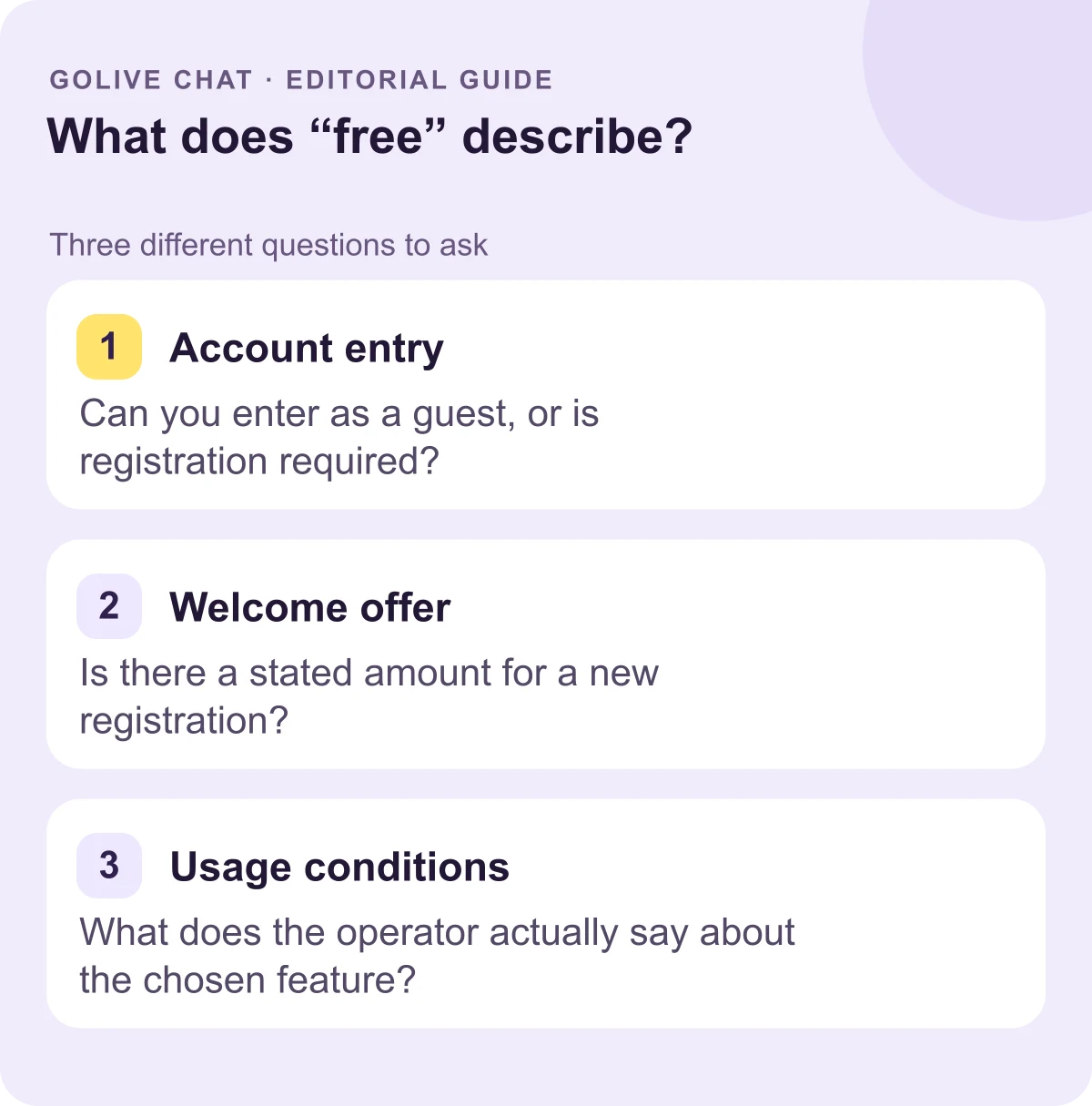
Interpreting Operator Offers and Eligibility
GoLive’s 200 free coins are offered at new registration. The welcome-offer guide explains that registration amount. The important reading task is to connect an offer with its qualifying action: creating an account, choosing a route or using a named feature. Look at the sentence beside the offer and any conditions linked directly from it.
The following are fictional wording examples for interpretation, not promises made by GoLive or any other named operator. “Free registration” answers a question about joining. “Unlimited text messages” would concern text messages. “Browser access without installation” describes the entry route. A statement about one of those subjects should be evaluated on that subject, rather than treated as an answer about every feature.
For a claim about unlimited video duration, identify the scope before relying on it. Does the operator mean one interaction, the number of interactions, or access during a particular period? Does the wording name a specific mode or account group? These questions help you locate the condition that matters instead of comparing two headlines that use the same adjective for different things.
If the explanation remains unclear, ask a precise question through the operator’s published contact route. An illustrative template is: “I am using the browser route and reading the registration offer. Which current conditions explain this feature?” Name the feature you mean and quote the unclear sentence. A targeted question gives the operator something specific to answer.
Limitations of Promotional Balances
A welcome balance is expressed in the operator’s own unit. To compare it usefully, identify the unit and eligibility before considering what the number means for your intended activity. The access comparison above tells you where to enter; this table focuses on the offer itself:
| Detail | What to look for | Question it resolves |
|---|---|---|
| Currency label | The exact name attached to the amount | Which operator’s unit am I reading? |
| Qualifying action | The action or account group named in the offer | Who is eligible? |
| Feature scope | The mode or feature named in the linked conditions | Which activity do these conditions cover? |
| Unanswered requirement | A condition essential to your choice | What should I ask before deciding? |
For example, “GoLive — 200 free coins — new registration” is a compact record of the confirmed welcome offer. Add your feature question underneath it. If your essential question is about duration, ask GoLive through its published contact information for the current conditions relevant to that feature. Keep that question explicit instead of inventing a numerical conversion.
It helps to order your requirements. If avoiding installation is essential, the documented browser route resolves that first item. Then move to the next open item, such as the account step or the scope of a particular feature. This approach keeps a welcome amount in proportion to the reason you wanted the service in the first place.
A meeting-room choice also involves a practical distinction: you already have someone to invite. If you are still deciding what kind of conversation you want, settle that preference before comparing room instructions and welcome balances. They are information about different parts of the experience. Choosing a route that fits your purpose is more useful than choosing the largest number in an advert.
Conclusion
Choose the conversation format first, inspect its access instructions, and resolve the account or feature conditions that matter to you. The 1v1 video chat guide explains the format further. For GoLive’s 200-coin registration offer, browser access and optional Android route, visit the official 1v1 video call page.
Sources
FAQ
Is there a documented browser meeting option without a call-duration limit?
MiroTalk P2P’s official homepage advertises meeting rooms without a call-time limitation. This guide reports its published description; it has not run a duration test or verified a connection-quality guarantee.
What does GoLive’s 200-coin offer confirm?
New accounts receive 200 free coins at registration. This guide has no verified conversion from that amount to a usage duration.
Can I open GoLive without installing an app?
Yes. Browser access without installation is confirmed. An optional Android app is also identified by the official Google Play listing linked above.
Why might a browser camera request fail?
MDN distinguishes permission denial, unavailable matching devices and devices the browser cannot read. Start with the actual error and your browser’s site-permission settings.
What should I ask about an unclear offer?
Name your entry route and the feature you mean, then quote the unclear wording. Ask which current conditions apply to that feature through the operator’s published contact route.
New users get 200 free coins when they register with GoLive Chat. GoLive Chat works in the browser without installation. An Android app is also available.
Start 1v1 video chat — get 200 free coins