
Video Call with Strangers Browser vs App: A Practical Guide
Published 2026-09-22 · Updated 2026-10-25
For a video call with strangers, choose browser access when you want to open a website without installing a client. Choose an app when you prefer returning through your device’s app list. GoLive provides both browser access without installation and an optional Android app, with 200 free coins at registration for new accounts. Its 1v1 chat access information is a starting point. This browser vs app guide compares installation, permissions, updates and local data, then shows which controls to use for common tasks.

Key Takeaways
- A website avoids an application download. An installed client puts an application in your device’s app list.
- Change website permissions in the browser; change Android app permissions in the phone’s settings.
- Website content, browser software and installed applications have their own update processes.
- Both methods can store information locally. Look at site-data controls for a website and app-storage controls for an installed client.
- Closing a tab, clearing cached files, uninstalling and requesting account deletion accomplish different things. Pick the action that matches your goal.
Defining Browser and App Access Paths
Browser access starts with a web address. Installed access starts with an application for your device. GoLive Chat confirms browser use without installation and an optional Android app on Google Play [2]. If avoiding a download is your priority, begin with the website. If you prefer opening a client from your own phone’s app list, consider the Android option. The table compares these delivery methods using documented platform controls.
| Criterion | Browser access | Android app | Documented evidence |
|---|---|---|---|
| Installation and return | Open the website; a bookmark can save its address for later | Install the client and return through the device’s app list | Chrome bookmarks [8]; GoLive’s app listing [2] |
| Camera and microphone permission | Manage access for the named website in browser settings | Manage the selected application’s permissions in Android settings | Chrome site permissions [3]; Android app permissions [5] |
| Software updates | The browser has its own update process; website files are delivered by the operator | Google Play provides manual and automatic app-update options | Chrome updates [7]; Google Play updates [6] |
| Local storage | Cached website files and other site data are managed through the browser | App storage and temporary cached data are managed through the device | Firefox cache guidance [9]; Android storage guidance [10] |
Choose by the device you actually use
For an occasional visit on a shared computer, the website avoids adding an installed application. You still need to consider a sign-in and saved website choices before leaving that computer. On a personal Android phone, an app-list entry may fit the way you open services each day. Browser access is also available there when you prefer it.
If you choose a website for repeated use, a bookmark can make its address easier to find. Chrome’s documentation explains how to save the current page using the bookmark control beside the address bar. Save the known address you intended to visit, rather than relying on a fresh search result every time. A bookmark is a browser convenience, not an extra GoLive feature.
Key Criteria for Choosing Your Access Method
After choosing an entry method, find the account explanation and the relevant permission controls. A sign-up page answers a registration question; a device prompt asks whether to allow access to a named feature. Read each at the point where you are making that decision.
Find the right control
- Open the intended entry point. Use the known website address, or the official Google Play listing if you want the Android client.
- Read the account step. Find the sign-up or login explanation before deciding what account information to provide.
- Identify the permission owner. A browser prompt names a website. Android’s app settings name the installed application.
- Locate the place to change your choice. Save the relevant settings path below so you can revisit it later.
On desktop Chrome, open the website, select the site-information control to the left of its address, then choose Site settings. Google’s site-permission guide [3] explains how to change a website’s saved choices. Some permission prompts offer a one-time choice, while others allow access on later visits. Read the choice shown instead of assuming every permission expires when you finish a visit. Chrome also documents camera and microphone access [4] specifically.
For Android applications, open Settings, select Apps, choose the application and open Permissions. The Android help page [5] describes changing allowed or denied permissions. Menu details can vary by phone and Android version. If you need a particular feature, check the service’s help page or settings for the website or application you opened.
Match the choice to your situation
On a shared laptop, start with the website and check sign-in and saved permissions before leaving the device. On your own Android phone, choose between the website and installed client based on how you prefer to return. If storage is your main concern, look at the actual storage controls rather than assuming browser use leaves no files behind.
The 1v1 video chat guide explains the conversation format. GoLive’s welcome-offer guide describes its registration offer. Those pages answer format and offer questions, while the device settings above help you manage the access method you selected.
Comparing Installation and Account Entry Workflows
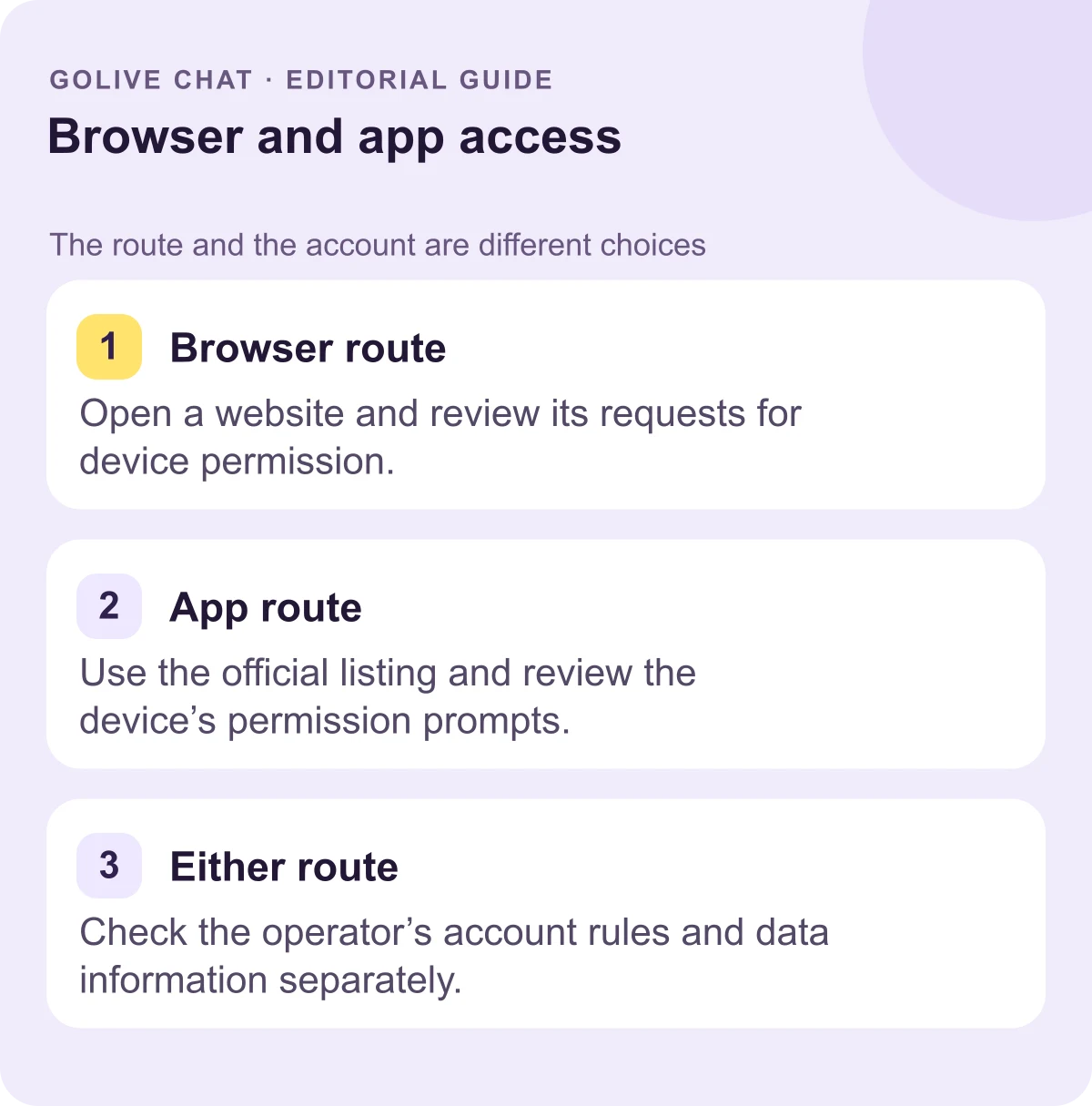
For a browser visit, open the website, read the entry information and decide whether to proceed with registration. Respond to device-permission prompts deliberately when they appear. The website avoids installing a client, but an account step can still apply. GoLive’s 200 free coins are its stated offer for new registrations. Use the current registration information to understand that offer, rather than treating the choice of browser as an answer about an account or a particular feature.
For the Android option, begin with the official Google Play listing. After installation, open the client from your device’s app list. Use Android’s app settings when revisiting permission choices. This suits someone who prefers an installed application as their entry point. If you want to avoid the installation step, GoLive’s browser option remains another access choice. Pick the method you prefer for the device you are using, then follow the account information shown for it.
For updates, identify which software you mean. The operator publishes website content; your browser obtains the relevant files and may keep cached copies. The browser application also has its own software updates. An Android client obtained through Google Play follows the store’s app-update controls, which include manual and automatic options. A change to the website and an update to an installed client are therefore different events. Knowing which one you are looking at helps you find the relevant update setting.
Understanding Data Persistence and Uninstallation Limits
Start with what you want to change. Leaving a page, changing a permission, freeing device storage and asking about an account each call for a particular action. The browser and Android examples below show where to begin without promising what an operator retains on its servers.
Change a device or browser choice
- Leave a website: close the tab or navigate away. Check sign-in and saved settings when using a shared device.
- Change website permission: open the named site’s permission controls in the browser and adjust the relevant choice.
- Change app permission: select the application in Android’s Apps settings, then open Permissions.
- Remove an installed client: uninstall the application using the device’s controls. Use the operator’s instructions for an additional account-deletion request.
Choose which local data to remove
For cached website files, use the browser’s cache controls. Mozilla’s cache guidance [9] distinguishes those temporary files from other browsing-data categories. Select the category you intend to remove; clearing cached files alone should not be assumed to clear cookies or every saved choice.
For an installed Android application, the device can offer controls for temporary cached data and app storage. Google’s storage guidance [10] distinguishes these actions and notes that settings vary by phone. Read the selected action carefully before confirming it, particularly if your goal is simply to free temporary space.
Send an account question to the operator
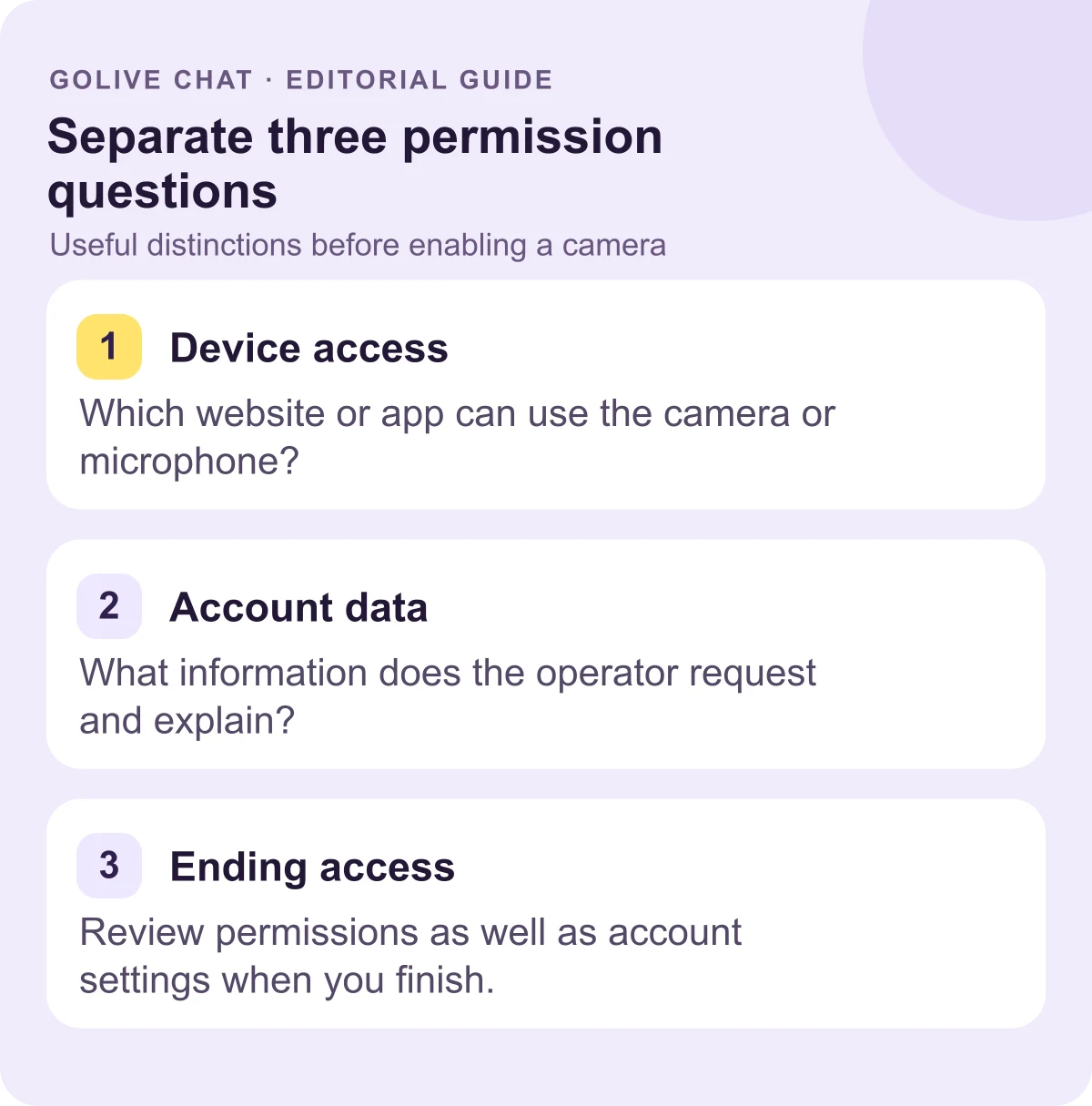
For account deletion or retention information, read the operator’s current privacy and account documentation. Find its named process and contact channel. Clearing device data or removing a client does not by itself describe what happens to server-side records. Keep the request focused on the account action you want, instead of assuming that a storage control also submits that request.
Conclusion
Use a website to avoid an installation step, or an installed client when it suits how you use your own device. The practical differences are where you manage permissions, obtain software updates and control local storage. GoLive confirms browser access without installation, an optional Android app and 200 free coins at new registration. For its current offer and access information, visit the official 1v1 video call page.
Sources
- GoLive Chat: stated registration offer and browser access
- GoLive Android app on Google Play
- Chrome: website permission controls
- Chrome: camera and microphone access
- Android: app-permission controls
- Google Play: manual and automatic app updates
- Chrome: software updates
- Chrome: bookmarks
- Firefox: cached files and other browsing-data choices
- Android: device storage and app data
FAQ
Does GoLive require an app installation?
GoLive provides browser access without installation. An optional Android app is also available through the official Google Play listing.
What is GoLive’s welcome offer?
New accounts receive 200 free coins at registration. That is the stated registration amount, rather than a conversion into a particular feature allowance.
Where do I change a website’s permissions?
Use the browser’s settings for the named website. On desktop Chrome, the site-information control beside the address leads to Site settings, where you can change a saved permission.
Is clearing cached data the same as deleting an account?
No. Cache controls concern local temporary data; the operator’s account documentation explains its account process and retention information.
How do I choose for regular Android use?
Choose the installed client if you prefer returning through the device’s app list. Choose the website if you prefer browser access without an application download.
New users get 200 free coins when they register with GoLive Chat. GoLive Chat works in the browser without installation. An Android app is also available.
Start 1v1 video chat — get 200 free coins